Keyboard
GDevelop gives access to all inputs made on the keyboard. This includes conditions to check if a key was pressed or released.
Any key pressed
For this condition, the corresponding action/s will be performed if any key on the keyboard is pressed.
Any key released
The corresponding actions will be performed on the frame where any key on the keyboard is released.
Key pressed
Whenever the key selected while setting this condition is pressed, the corresponding actions are performed. This condition stays true for as long as the key is held down, so the actions run on every frame the key remains pressed. This is what you usually want for continuous movement (e.g. moving a character while an arrow key is held).
Key just pressed
This condition is only true on the single frame where the selected key changes from released to pressed. Use it instead of "Key pressed" when something should happen once per press — for example, firing a bullet, jumping, or toggling a menu — so that holding the key down does not repeat the action on every frame.
Key released
Whenever the key selected while setting this condition is released, the corresponding actions are performed.
Key pressed (text expression)
To test a key press using this condition, you need to enter the key name in the form of text expression. For example, if you want to check condition for left arrow key press, you need to enter "Left" in the field.
Danger
Make sure that the key name is surrounded by quotes.
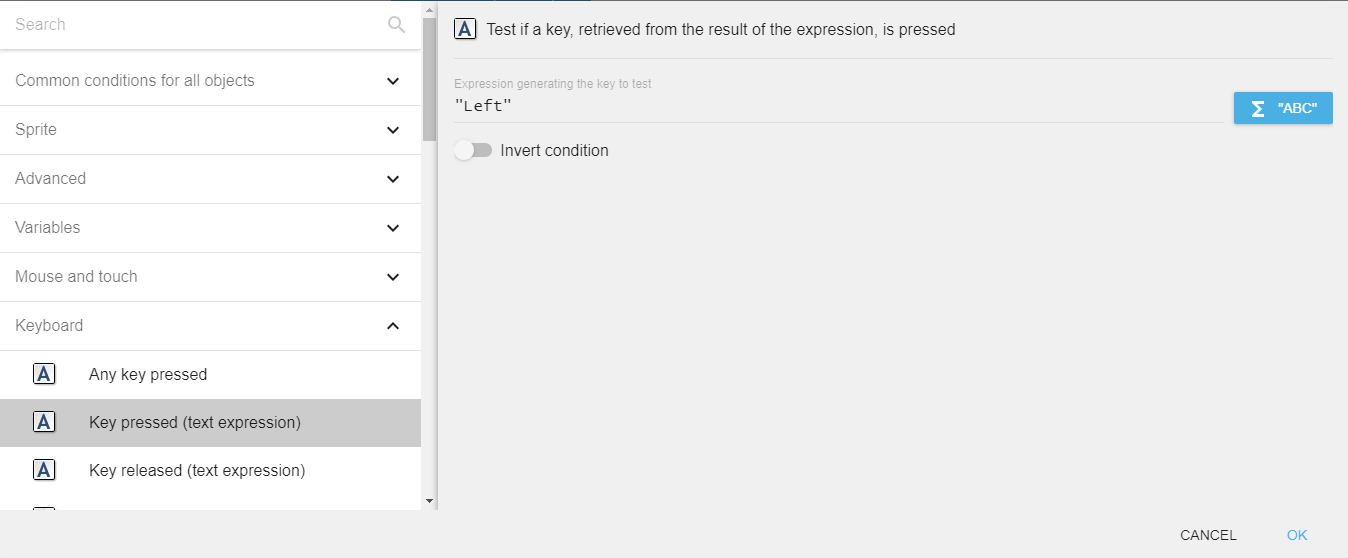
This is useful when the key to check is not known in advance — for instance, to let players remap their controls by storing the chosen key name in a variable and passing that variable to the condition.
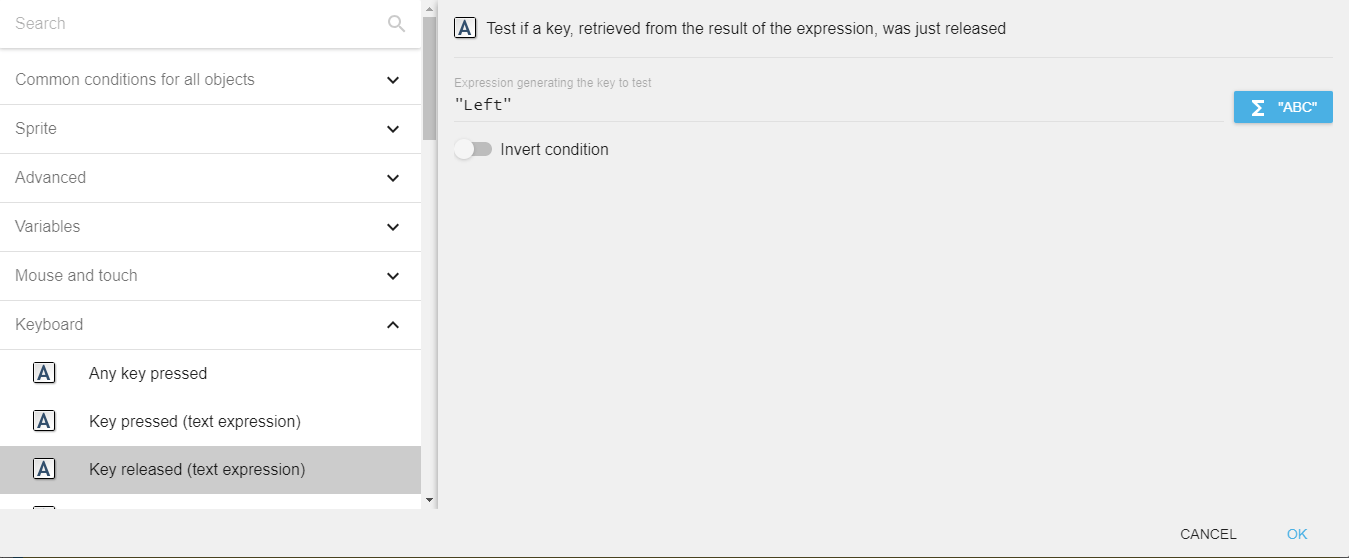
Key released (text expression)
To test a key release using this condition, you need to enter the key name in the form of text expression. For example, if you want to check condition for left arrow key release, you need to enter "Left" in the field.
Key names
The key names used by the text-expression conditions (and returned by the "Last key pressed" expression) are:
- Letters:
atoz(always lowercase). - Top-row digits:
Num0toNum9. Numeric keypad digits:Numpad0toNumpad9. - Arrow keys:
Left,Up,Right,Down. - Modifiers:
LShift,RShift,LControl,RControl,LAlt,RAlt,LSystem,RSystem(the "System" keys are the Windows/Command keys). - Function keys:
F1toF12. - Editing and navigation:
Space,Return,Back(Backspace),Tab,Delete,Insert,Escape,PageUp,PageDown,End,Home,Pause,Menu. - Punctuation:
SemiColon,Comma,Period,Quote,Slash,BackSlash,Equal,Dash,LBracket,RBracket,Tilde. - Numeric keypad operators:
Add,Subtract,Multiply,Divide.
Note
The left and right versions of a modifier are separate keys (for example, LShift and RShift). Check both if you want to react to either one.
Last key pressed
"Last key pressed" expression returns the last key press in the form of a string. For example, if the last key press is the left arrow key, the expression will return "Left".
Reference
All actions, conditions and expressions are listed in the keyboard reference page.